Preferences reference
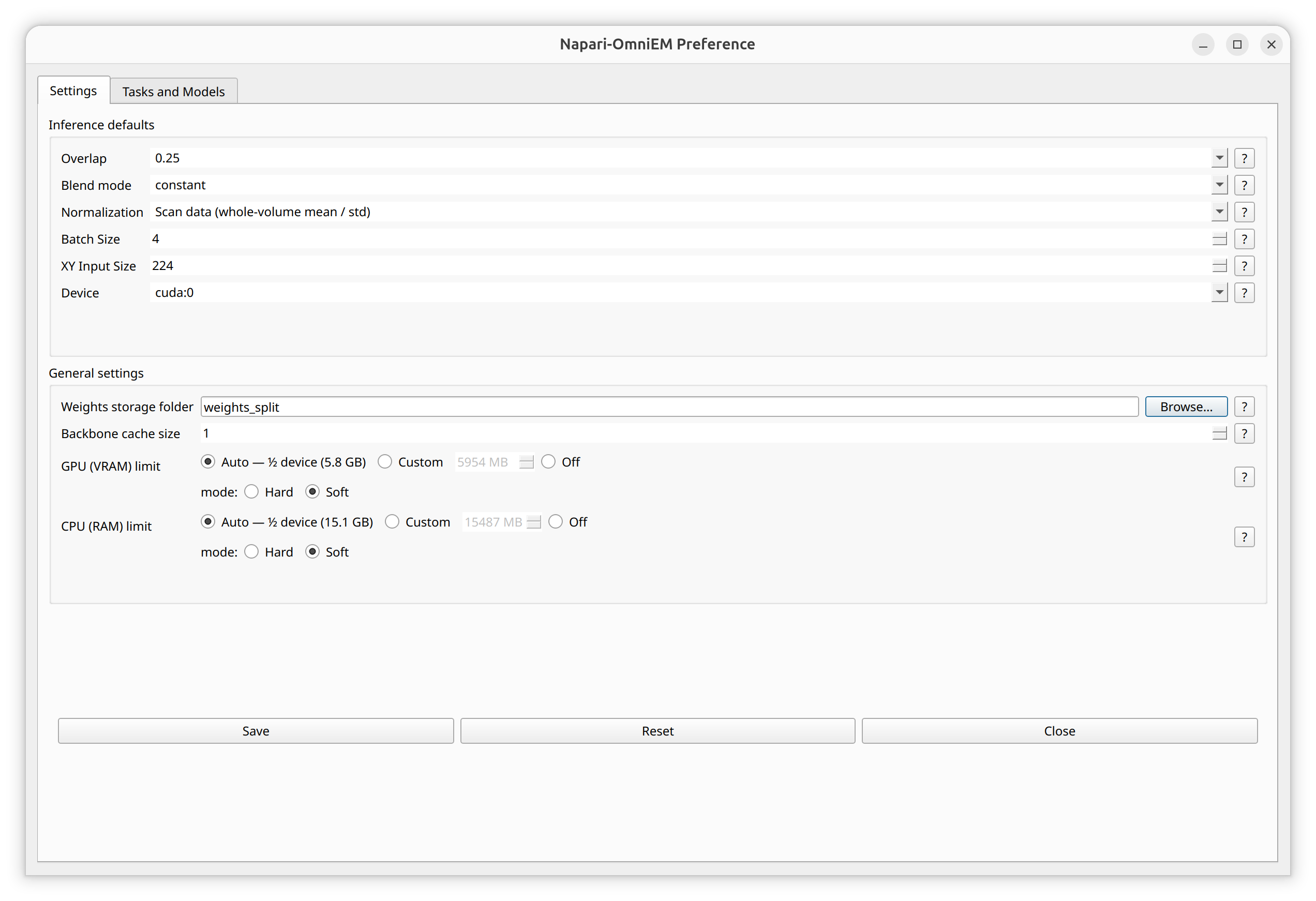
The ⚙️ Preferences button opens the settings dialog. It has two tabs: Settings (defaults and software-wide options, described here) and Tasks and Models (see Task, solution, and backbone management and Custom model requirements).
Changes made here do not require a restart. Creating a task does require one; the interface indicates this when applicable.
Inference defaults
Change and save these values to define your own default inference settings. The saved values become the starting settings for future runs, but you can still override them for an individual run in the in-memory Advanced settings or the on-disk wizard.
| Setting | Notes |
|---|---|
| Device | Default compute device (cpu or cuda:N). |
| Batch size | Tiles processed together. Default 4. |
| XY input size | Square tile size fed to the model. Default 224 (range 112–896, step 112). |
| Overlap | Fractional overlap between tiles. Default 0.25. |
| Blend mode | How overlapping tiles are combined, constant or gaussian. |
| Normalization source | scan-data (whole-volume statistics) or model (the model's built-in statistics). |
See Sliding window parameters below for what each of the tiling parameters does.
Sliding window parameters
Sliding-window inference tiles a large image into overlapping windows, runs each through the model, and merges the results. It is used by both in-memory (tiled) and on-disk inference. The values above are the defaults; each has a per-run override (the Advanced section in-memory, or the wizard on-disk).
Input XY size
The spatial size, in pixels, of each window in the XY plane. Larger windows provide more context and usually better quality; smaller windows use less GPU memory but can weaken boundary consistency. The default is 224, with a range of 112–896 in steps of 112. Use the largest size that fits in GPU memory.
Batch size
The number of windows processed together in one forward pass. Larger batches increase throughput; smaller batches use less GPU memory. The default is 4. Set it to 1 when GPU memory is limited, then increase it gradually.
Overlap
The fractional overlap between adjacent windows (0.0 to 0.5). Greater
overlap smooths boundaries and reduces stitching artifacts but is slower. The
default is 0.25. Lower it toward 0.1 for speed on tolerant Image-to-Image
runs, and keep it higher for boundary-sensitive Image-to-Label tasks.
Blend mode
The method used to merge overlapping tiles: constant (uniform) or gaussian (weighted toward tile centers, smoother seams).
Practical tips
- Prefer larger XY sizes over larger batch sizes for better quality.
- Keep overlap ≥ 0.1 to avoid visible stitching artifacts.
- If an out-of-memory (OOM) error occurs, reduce the batch size first, then the XY input size. Reduce the overlap only as a last resort.
See Inference Tips & Common Pitfalls for memory usage, out-of-memory recovery, and scratch-disk guidance.
General settings
Software-wide options.
Weights storage folder
Where the plugin keeps its managed weight files (backbone_<tag>.pt and
head_*.pt). Use Browse… to change it; the plugin offers to move the existing
managed files to the new folder so your models keep working.
Backbone cache size
How many distinct shared backbones may stay resident in memory at once. Because tasks share a backbone, a small cache is usually enough; raise it only if you switch between models that use different backbones.
GPU and CPU memory limits
The GPU (VRAM) limit and CPU (RAM) limit settings cap how much memory a run may use. Each setting has:
- A source: Auto (half of the device's total memory), Custom (the MB value in the spinbox), or Off (no limit).
- A mode: Hard or Soft. Hard blocks a run when its upper-end memory estimate exceeds the cap; Soft only warns and lets you continue.
“Proceed anyway”
Before a run, the plugin estimates the memory it needs. If that estimate cannot be guaranteed—because it exceeds a soft limit or because the available GPU memory or scratch space is insufficient—you see a Proceed anyway option. It lets you run at your own risk; the run may still hit an out-of-memory error.
Use the buttons at the bottom to Save or Reset all settings, or to Close the dialog.