Tools Workbench (🧰)
The 🧰 More Tools button on the OmniEM toolbar opens a workbench of utilities that sit alongside the main inference panel. It has six tabs.
Memory Management
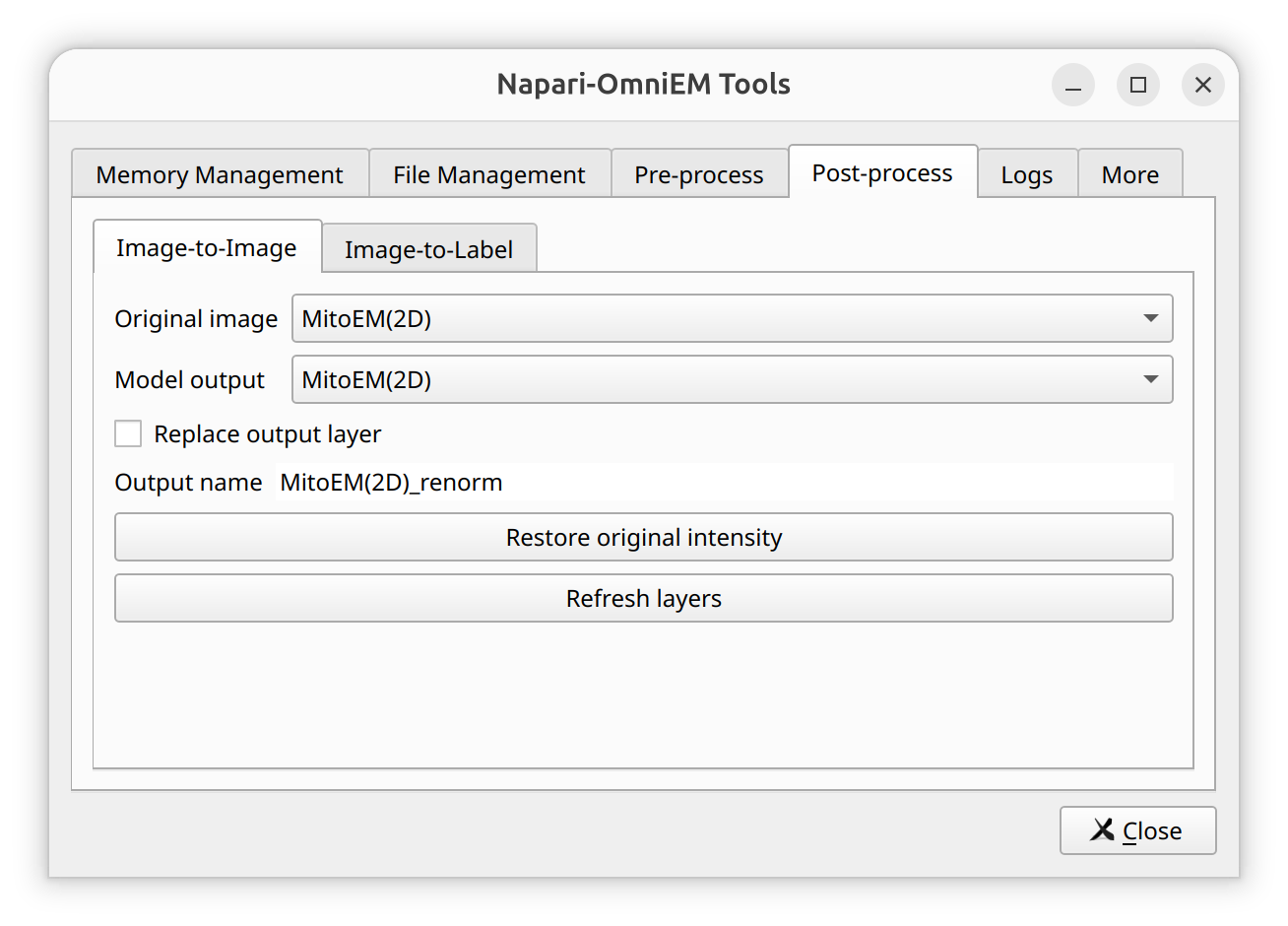
Memory Management operates only on active models loaded in the current napari session. Use it to load, measure, and unload runtime model objects while monitoring GPU and host memory. These actions do not remove saved tasks or solutions, deregister backbones, or delete model weight files.
The readout shows the resident backbone and its reference count, the loaded heads, allocated, reserved, and free GPU memory, and host RAM use. Each unload action reports how much memory it freed.
| Button | What it does |
|---|---|
| Preload | Load the selected solution now to make the first run faster. |
| Profile this solution | Measure the solution's actual memory use. This is not a passive inspection: profiling may evict loaded models and perform GPU forward passes. |
| Remove | Unload the selected active solution head from memory. Its saved solution and weights remain unchanged. |
| Remove backbone | Unload the active shared backbone when no loaded model references it. Its registration and weight file remain unchanged. |
| Clear all models | Unload every active head and backbone without changing saved model definitions or files. |
| Clear temporal data | Delete on-disk inference scratch files (see the warning below). |
| Refresh | Update the memory readout. |
Clear temporal data affects open results
On-disk inference results stay backed by their scratch file while you view them. Clear temporal data deletes those files immediately, which can make still-open result layers unreadable. Save anything you need first.
File Management
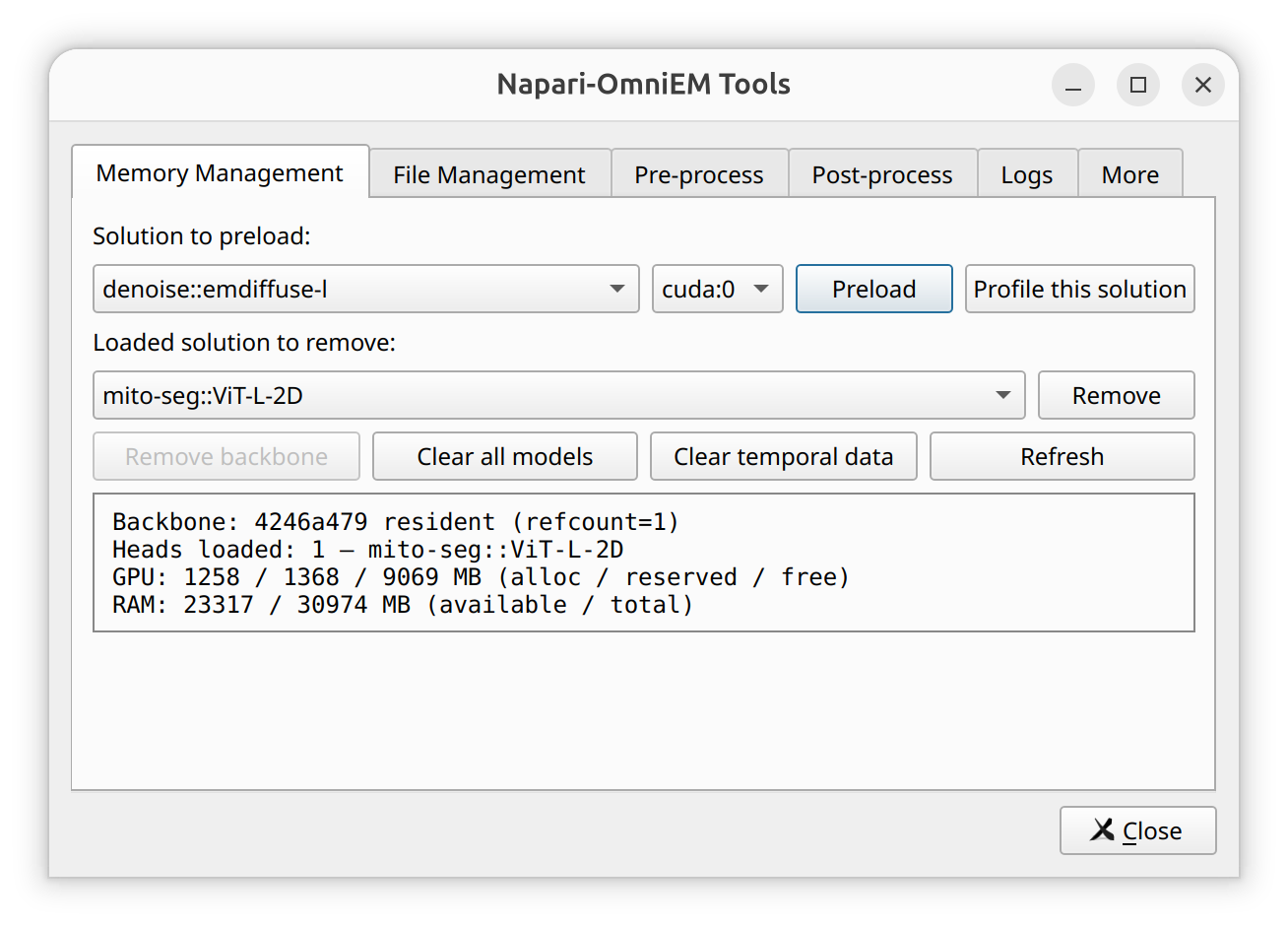
File Management is a standalone checkpoint-conversion tool:
- Split converts one combined checkpoint into separate backbone and head files.
- Merge combines a backbone and head into one checkpoint.
These operations work directly on the selected files. They do not add a solution or change the task, solution, or backbone registries.
Pre-process
Reserved for input pre-processing tools. Coming soon.
Post-process
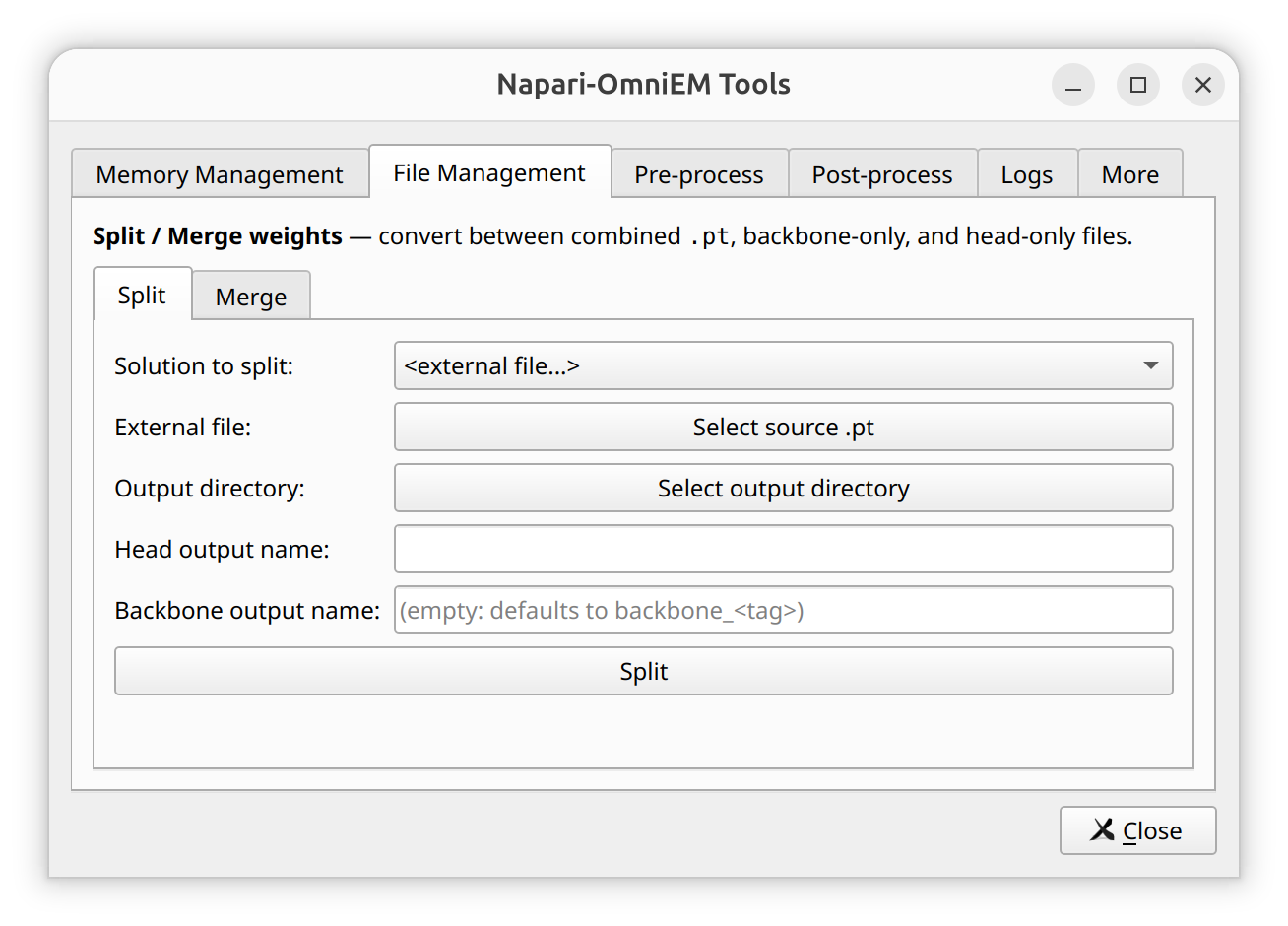
- Image-to-Image: rescale a model output's intensity back to the input's range. Pick the original image (the intensity reference) and the model output; optionally replace the output layer in place. This is the recommended final step after an Image-to-Image run.
- Image-to-Label: reserved for label post-processing. Coming soon.